PhoneRescue Review (2025): iMobie Data Recovery for iPhone & Android
PhoneRescue Review (2025): iMobie Data Recovery for iPhone & Android
By Oleohub • Updated 2025 • Category: Software Reviews
Losing photos, messages, contacts, or WhatsApp chats can feel like a disaster—especially when the files are
sentimental or work-related. PhoneRescue by iMobie is a desktop tool designed
to help mobile users recover lost data from iPhone/iOS and Android devices, as well as from
backups (like iCloud/iTunes) depending on your scenario.
This guide focuses on the 90% of what most users need: what PhoneRescue can recover, how it works,
when it’s worth paying for, and how it stacks up against other popular tools like Wondershare Dr.Fone, Tenorshare UltData, and iMyFone D-Back.
Quick takeaway:
PhoneRescue is best for people who (1) deleted important data, (2) need to extract data from backups, or
(3) want an all-in-one “recovery + utility” workflow (especially on iOS). If your phone has physical damage,
or storage is heavily overwritten, no software can guarantee a full recovery.
What PhoneRescue Does (What Most Users Actually Need)
Most “phone recovery” problems fall into a few real-world cases. PhoneRescue focuses on these:
Deleted files: Photos, videos, contacts, messages, call logs, notes, and app data (varies by device and OS).
Backup extraction: Pull specific items from iCloud/iTunes backups (so you don’t need to restore the whole phone).
Selective recovery: Preview and recover only the items you want (not everything).
“Oh no” moments: Accidental deletion, failed updates, phone resets, or lost chats.
PhoneRescue for iOS: Typical Recovery Scenarios
iPhone users usually come for one of three paths:
Recover from device: Best when the data loss is recent and your device is still accessible.
Recover from iTunes backup: Great if you backed up to your computer but don’t want a full restore.
Recover from iCloud: Helpful when your last iCloud backup contains the files you need.
Tip: The faster you stop using the phone after data loss, the better—new photos/apps can overwrite recoverable data.
PhoneRescue for Android: What It’s Used For
Android recovery often depends on device brand, Android version, and whether the phone allows deeper access.
Many users use PhoneRescue for Android to recover common data types and media files after deletion or system issues.
How It Works (Simple Explanation)
PhoneRescue runs on your computer and communicates with your phone through a cable (or through backups).
In practice, you’ll do this:
Install PhoneRescue on Windows/Mac
Connect your phone (or select iCloud/iTunes backup)
Scan for recoverable data
Preview what can be recovered
Recover to your phone or your computer
Important: Recovery results depend on your situation. If the phone has been used heavily after deletion,
the chance of full recovery drops because the storage space may be overwritten.
Key Features (The “90%” Users Care About)
1) Recover data across common categories
For most people, the main win is recovering the essentials: photos, videos, messages, contacts, call history,
notes, calendars, and app data (depending on iOS/Android capability and backup availability).
2) Backup recovery without full restore
Instead of restoring your entire iPhone backup (which can wipe newer data),
PhoneRescue typically lets you extract specific items from a backup. This is especially useful when you only need
a few photos or an important chat thread.
3) Preview before you pay (in many cases)
Many recovery tools allow scanning and previewing in a trial mode, then require a license to complete recovery.
This helps you avoid paying blind.
4) Guided workflows
PhoneRescue is built for non-technical users: click-based steps, categories, and guided recovery. If you’re not an IT person,
this matters because you’ll spend less time figuring out what to do.
PhoneRescue Pricing (What You’ll Likely Pay)
PhoneRescue is typically sold in separate versions for iOS and Android, with plan options like
subscriptions (3-month / 1-year) and a one-time purchase depending on the offer available.
Edition
Typical starting price
Good for
PhoneRescue for iOS
Starts around $45.99 (varies by plan/promo)
iPhone/iPad data recovery + backup extraction workflows
PhoneRescue for Android
Starts around $39.99 (varies by plan/promo)
Android data recovery workflows (varies by device/OS access)
Pricing changes with promos and plan type. Always check the official store page for the latest offer and license terms.
Pros & Cons
Pros
All-in-one recovery focus for common “lost data” scenarios
Often supports preview/scan before paying
Selective recovery (grab only what you need)
Beginner-friendly workflow
Cons
Recovery success depends heavily on overwrite, device access, and backup availability
iOS vs Android features differ; Android recovery may vary by model/version
License cost can add up if you only need a one-time small recovery
PhoneRescue vs Other Tools (Quick Comparison)
Here’s how PhoneRescue compares to popular alternatives. No tool is “best for everyone”—it depends on your problem.
Tool
Best for
Why choose it over PhoneRescue
Why choose PhoneRescue instead
Wondershare Dr.Fone
All-in-one phone toolkit (recovery + utilities)
You want a broad suite with many modules and brand recognition
You prefer a simpler, focused recovery flow and targeted recovery mindset
Tenorshare UltData
iPhone data recovery workflows
You already used Tenorshare products and want matching UI/ecosystem
You want iMobie’s recovery approach and plan options
iMyFone D-Back
Recovering messages, media, and app data from multiple sources
You prefer iMyFone’s interface and recovery templates
You want an iMobie-focused recovery experience
Disk Drill (iOS)
Recovery + drive utility style approach
You want a utility-style toolset beyond phone workflows
You want a phone-first guided recovery experience
Reality check: If a competitor offers a free “recover” tier, it may still limit saving files—many tools let you scan for free but require payment to export.
Who Should Use PhoneRescue?
Buy it if you are in these situations:
You deleted important photos/messages and need a recovery scan
You have iCloud/iTunes backups and want to extract data without restoring the whole device
You prefer a guided, beginner-friendly workflow
You need selective recovery (not a full dump)
Skip it if:
Your phone is physically damaged (no detection, storage failure, severe hardware issue)
You already overwrote storage heavily after deletion (new videos/apps/updates)
You only need a tiny recovery and a free method (backup restore) already works for you
How to Use PhoneRescue (Simple Steps)
Download & install PhoneRescue on your computer.
Connect your phone using a trusted USB cable.
Choose the data types you want to recover (Photos, Messages, Contacts, etc.).
Run a scan and wait for results.
Preview items (when available).
Recover selected items to your computer or device (depending on your mode).
Best practice: After data loss, stop installing new apps and stop recording new videos/photos until you try recovery.
FAQs
Is PhoneRescue safe to use?
Generally, reputable recovery tools are designed to read and extract data without intentionally harming your device.
Always download from the official website and avoid cracked versions.
Can PhoneRescue recover WhatsApp chats?
Recovery depends on your backup situation and device state. If backups exist, extraction is often the most reliable route.
Will it work if my iPhone is disabled?
It depends on whether the device can still be recognized and whether a backup exists. If the device can’t be accessed,
backup-based recovery is often the best option.
Verdict
PhoneRescue is a practical recovery option if you want a guided workflow to retrieve essential phone data
and you value the ability to recover selectively—especially from backups. If your priority is a massive “toolbox” suite,
Dr.Fone may be more appealing. If you want a phone-first recovery experience with clear flows, PhoneRescue is worth considering.
Technology keeps moving fast, and laptops today are not just laptops anymore. They can turn into tablets, they can run apps like a phone, and they can help you draw, write, o
r even design things like an artist. One of the best devices that shows this is the Microsoft Surface Pro.
The Surface Pro is a “2-in-1” computer. That means it can be used as a laptop (with a keyboard) and as a tablet (without the keyboard). People love it because it’s light, powerful, and easy to carry anywhere.
But here’s the big question: should you get the 12-inch Surface Pro or the 13-inch Surface Pro?
Let’s take a closer look at both, compare them, and find out which one is the best for you.
(Image Credit: Microsoft)
Meet the Microsoft Surface Pro (12-inch)
The 12-inch Surface Pro is like a smart notebook. It has a touchscreen, works with the Surface Pen (a digital pen for drawing or writing), and is small enough to fit in a backpack.
Best Features of the 12-inch Surface Pro:
Compact Size: At 12 inches, it’s easy to carry around. It feels like holding a thin notebook.
Touchscreen Display: Bright and sharp screen, perfect for watching videos, Zoom calls, or reading.
Lightweight: Around 1.7 pounds without the keyboard, which is lighter than most laptops.
(Image Credit: Microsoft)
Battery Life: Lasts around 12-13 hours, so you can use it all day at school or work.
Performance: Runs on Intel processors (like i5 or i7), so it can handle school projects, Office apps, and even some light gaming.
Windows 11: Comes with the newest version of Windows, which is smooth and easy to use.
The 12-inch version is best for students, travelers, or anyone who needs something portable.
Meet the Microsoft Surface Pro (13-inch)
The 13-inch Surface Pro is a bit bigger. You might think 1 inch doesn’t matter much, but it really does. That extra space makes the screen look larger, typing easier, andmultitasking more fun.
(Image Credit: Microsoft)
Best Features of the 13-inch Surface Pro:
Bigger Screen: At 13 inches, you get more room for apps, games, or split-screen work.
Sharper Display: The screen has higher resolution, which makes videos and pictures look amazing.
Better for Multitasking: If you like opening many apps at once, the bigger screen makes it easier.
Performance: Similar to the 12-inch, but the cooling and battery are slightly better in newer models.
Battery Life: Lasts about 13-15 hours, depending on what you do.
Stylus-Friendly: Artists and designers love the bigger canvas for sketching or digital art.
The 13-inch version is perfect for professionals, artists, or anyone who wants a laptop-tablet combo that feels closer to a real laptop.
Side-by-Side Comparison: 12-inch vs 13-inch
Here’s a simple chart to help you see the differences:
Feature
Surface Pro 12-inch
Surface Pro 13-inch
Screen Size
12.3 inches
13 inches
Weight
1.7 lbs
1.9 lbs
Battery Life
12–13 hours
13–15 hours
Resolution
2736 x 1824
2880 x 1920
Performance
Intel i5/i7 chips
Intel i5/i7 chips
Portability
Easier to carry
Slightly bigger but still slim
Best For
Students, travelers
Professionals, artists
Pricing: How Much Do They Cost?
Microsoft changes prices depending on the model, memory, and storage. But here’s a rough guide:
Surface Pro 12-inch: Starts around $999 and can go up to $1,500+ depending on upgrades (like faster processors or more storage).
Surface Pro 13-inch: Starts around $1,099 and can go up to $1,700+ for higher-end models.
Remember: the keyboard and pen usually cost extra. The keyboard is about $150, and the pen is around $100.
What Makes the Surface Pro Special?
2-in-1 Magic: Switch from laptop to tablet in seconds.
Touchscreen Fun: Draw, tap, swipe, and write naturally.
Super Portable: Lighter than most laptops, so easy to bring to school or the office.
Great for Students and Professionals: Perfect for note-taking, video calls, and working on projects.
Strong Battery Life: Use it all day without needing to plug in.
Windows 11: Full laptop power in a tablet body. You can install real apps, not just mobile ones.
Why Should You Buy It?
Here’s why people love Surface Pro:
Students: Great for taking notes, drawing diagrams, attending online classes, and watching lessons.
Artists: The Surface Pen and big screen (especially the 13-inch) make it amazing for digital drawing or painting.
Business Professionals: Super light for traveling, strong enough for presentations, and perfect for typing emails on the go.
Everyday Users: Watch Netflix, play light games, browse the web, and connect with friends.
If you’re choosing between the two:
Get the 12-inch if you want something small, light, and easier to carry every day.
Get the 13-inch if you like a bigger screen for work, art, or entertainment.
Which One Wins?
Honestly, both are great. The 12-inch wins for portability. The 13-inch wins for experience and comfort.
Think of it this way:
The 12-inch is like carrying a small notebook.
The 13-inch is like carrying a magazine — still light, but more space to enjoy.
Final Thoughts
The Microsoft Surface Pro is not just a gadget — it’s like having a laptop, a tablet, and a sketchbook in one. Whether you go for the 12-inch or the 13-inch, you’re getting a powerful device that can help with school, work, or fun.
Choose the 12-inch if you’re always on the move.
Choose the 13-inch if you want more space to create, work, or watch movies.
Either way, you’ll love how light, fast, and useful it is.
If you’re looking for a computer that’s easy to carry, fun to use, and strong enough for work or play, the Microsoft Surface Pro is worth buying.
Conclusion
The Microsoft Surface Pro is like having a laptop, tablet, and digital notebook all in one. Whether you pick the 12-inch or the 13-inch, you’ll get a device that’s stylish, powerful, and perfect for school, work, or play.
If you want portability, choose the 12-inch. If you want more comfort and space, choose the 13-inch.
No matter what, the Surface Pro is a smart buy in 2025.
👋 Final Words
The Microsoft Surface Pro 12-inch and 13-inch both bring power, style, and flexibility into one device. Whether you’re a student, professional, or artist, there’s a Surface Pro that fits your lifestyle.
But wait—our journey doesn’t end here! 🎉
👉 Stay tuned for our next big review: iPad Pro vs. Microsoft Surface Pro. We’ll dive deep into Apple’s iPad powerhouse and see how it stacks up against Microsoft’s Surface Pro. Which one will win in performance, design, and value? You won’t want to miss it!
Hey guys here’s a robust review of the ASUS TUF Gaming F16 (FX607)—covering its standout strengths, capabilities, and how it stacks up against the competition.
Image source: asus.com/sg/
Overview
The ASUS TUF Gaming F16 FX607 is a mid‑range gaming laptop built to deliver strong performance and reliability. Configured with up to:
Intel Core i7‑13650HX (6 P‑cores + 8 E‑cores, 55 W base TDP)
NVIDIA GeForce RTX 4060 (130 W TGP) or optional RTX 4050
This blend targets gamers who need solid FPS, color-accurate screens for content creation, and a tough build—without breaking the bank.
Performance: Desktop-Class Power
CPU & GPU
The i7‑13650HX provides desktop-level multitasking with high single-thread and multi-core speeds.
RTX 4060 under a 130 W TGP handles modern AAA games smoothly at 1080p with high settings.
A MUX switch & NVIDIA Advanced Optimus allows direct dGPU output, reducing latency by up to ~8–10% FPS loss during gameplay
Cooling
Dual 84‑blade Arc Flow fans, 4 exhaust vents, and up to 5 copper heatpipes ensure sustained boost clocks with thermal headroom
In “Turbo” mode, performance peaks—but fan noise increases; “Performance” mode offers a quieter balance. Verdict: Excellent real-world gaming performance, rivaling pricier systems without throttling.
Display & Visuals
A 16″ IPS panel with 165 Hz refresh, fast response, and over 95% sRGB coverage—floor for both immersive gaming and accurate photo/video work
The 16:10 aspect ratio provides more vertical real estate—great for productivity and immersion.
G-Sync support adds smoother visuals during gameplay
Edge: Almost desktop-class panel quality at a mid-tier price, excellent for dual gamers/creators.
Build Quality & Durability
MIL‑STD‑810H certified: withstands vibration, shock, altitude, and extreme temperature—built for rugged use.
Solid chassis design featuring plastic reinforced with metal and unyielding hinges.
Edge: More durable than other budget gaming laptops that often cut corners on chassis quality.
Upgradability & I/O
Two SODIMM slots + two PCIe 4.0 M.2 slots for easy RAM and SSD upgrades.
Versatile ports including HDMI 2.1, Thunderbolt 4/USB‑C (DP 1.4 + 100 W PD), multiple USB‑A ports, RJ‑45 LAN, Kensington lock, and audio combo jack.
Edge: A rare combination of strong upgradability and port variety in this segment.
Battery Life & Mobility
ASUS claims an impressive 90 Wh battery (though some markets may have 56 Wh), delivering ~20 hours of web browsing in iGPU mode with panel power-saving features enabled.
Works with lightweight USB-C charging, enabling mobile productivity if you forget the bulky 240 Watts brick.
Edge: Exceptional endurance for a gaming laptop, unmatched by most rivals.
User Experience: Keyboard, Audio, Software
Comfortable, 7 mm travel backlit keyboard (with dedicated media keys) and spacious 128 × 76 mm touchpad.
Dolby Atmos + AI noise cancellation speakers/mic, ideal for gaming and content creation.
Armoury Crate centralizes performance/power profiles, lighting, fan control, with a “Panel Power Saver” toggle for battery mode.
Edge: Polished input experience with thoughtful software offering system-level control.
Where It Falls Short
Under full load, fans in “Turbo” mode can get loud & chassis warm.
Heavier and thicker than ultraportable gaming machines—though remains acceptable for desk‑based use.
Some misconfigurations ship with lower-tier CPUs (like Core i5‑12450H) and RTX 3050, but the i7 + RTX 4060 SKU is the sweet spot.
Competitive Comparison
How does the FX607 stack up against competitors?
Competitor
Strengths
FX607 Advantages
Lenovo Legion 5
Sleek premium build, RTX 4070 variant
Better upgradability, MIL‑STD durability, USB‑C PD, louder but more rugged
HP Victus 16
Lower cost entry‑level, similar display
Superior build quality, stronger CPU, better cooling, upgradability
Acer / Dell mid‑range
Often better screens or aesthetics
MUX switch, dual SSD+RAM slots, durability, battery life
ROG Strix / Omen
High-end models with RTX 4070–4080 series
More affordable, quieter design, upgrades remain easy
The TUF is worth the difference… Better build and display quality… larger capacity battery + stronger CPU.reddit.com
Value & Pricing
Current deals show FX607 with i7‑13650HX + RTX 4060 + 16 GB DDR5 + 512 GB SSD under SGD 1,400–1,600 .
Configurations with RTX 4050 offer further savings (~$1,000), though performance scales accordingly.
Edge: Best-in-class spec-to-price ratio—especially in RTX 4060 tier.
Product Highlight
The ASUS TUF Gaming F16 FX607 is a well-balanced gaming powerhouse, featuring an Intel Core i7-13650HX processor, RTX 4060 GPU, and a 16″ FHD+ 165Hz display. Priced at approximately SG$1,777.00 and available from the ASUS Store SG, it delivers strong performance across the board. With a solid 4.7★ rating, this model stands out for its rugged build quality, excellent screen, MUX switch, reliable battery life, and effective thermal management—making it a great choice for gamers who demand both power and durability.
Final Verdict
The ASUS TUF Gaming F16 FX607 is a standout gaming laptop that punches well above its price.
Pros:
Near desktop gaming performance with RTX 4060 + i7‑13650HX
High-refresh, color‑accurate 16:10 panel
Rugged MIL‑STD build & excellent cooling
Dual‑slot RAM/SSD for future-proofing
Robust battery life with USB‑C charging
Cons:
Noisy peak fans under heavy load
Slightly bulky/unwieldy for travel
Entry configs can underdeliver—opt for i7 + RTX 4060
Compared to rivals, the FX607 wins on reliability, performance, and features, offering a more compelling package—especially for gamers who also need creator tools or want longevity.
Recommendations
For gamers who also content-create: This is one of the top choices in the sub-SGD 1,900 bracket.
For portability-prioritized users: Consider thinner RTX laptops (e.g., Zephyrus G14) but understand you’ll sacrifice thermal headroom & repairability.
Looking for a future-proof rig: The FX607’s upgradable platform ensures a multi-year lifespan, even when gaming budgets tighten.
Here is the Framework Laptop—highlighting its best features, specifications, pricing—with a summary and verdict at the end.
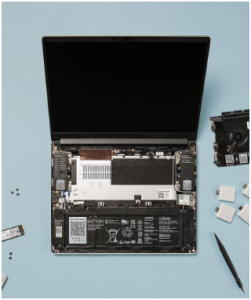
Framework Laptop image used with attribution to Framework
Introduction: The Modular Revolution
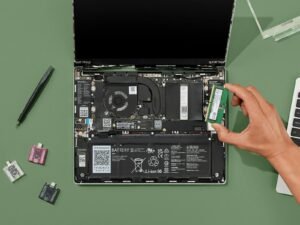
The Framework Laptop stands apart in today’s laptop market by embracing modularity, repairability, and sustainability. Born from the right-to-repair movement, Framework’s mission is clear: empower users with full control over their devices. Whether it’s upgrading a component, replacing damaged parts, or customizing ports—you can easily DIY it yourself.
Rather than fixed ports, Framework includes configurable expansion-card slots. You choose what ports you need—USB-C (with Thunderbolt/USB4), USB-A, HDMI, DisplayPort, microSD, Ethernet, headphone jack—swapping them as desired.
DIY Edition – Choose a barebones chassis at a reduced price and install components yourself. Ideal for tinkerers or budget-conscious users looking to upgrade later frame.work+15frame.work+15reddit.com+15.
Future-Proof Upgrades – Need a more powerful CPU or upgraded GPU? Framework’s swappable mainboards make it possible—across generations, even cross-CPU-line (e.g., Intel to AMD) community.frame.work+13en.wikipedia.org+13theverge.com+13.
Sustainability Commitment – Framework’s ecosystem extends beyond hardware—it includes firmware openness (coreboot/UEFI) and community development. The company actively refurbishes and sells “factory seconds” to reduce waste .
Models & Specifications
Framework Laptop 13 (2025)
CPU: Up to AMD Ryzen AI 9 HX 370 (12-core AI-centric)
Memory: Up to 96 GB DDR5‑5600
Display: 13.5″, 2880×1920, 120Hz matte panel
Graphics: Integrated RDNA3 or discrete GPU via Expansion Bay
Ports: 4 user-swappable expansion slots + combo audio jack
Connectivity: Wi‑Fi 7, Bluetooth 5.4
Webcam: 1080p with privacy LED and hardware kill-switch
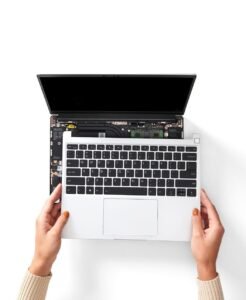
Framework Laptop image used with attribution to Framework
Performance Overview
Framework Laptop 13
With Ryzen AI 5/7/9 CPUs, this model delivers competitive performance in productivity and light creative workloads. The discrete GPU bay adds flexibility for heavier tasks wired.com+3theverge.com+3pcworld.com+3.
Reviewers noted strong multi-core performance but modest single-core results. Battery life ranged from 7.5 to 11 hours, lagging behind MacBook Air, but still adequate wired.com.
Framework Laptop 12
Optimized for light use—web, documents, education. Convertible functionality and screen repairability are its core strengths wired.com+4theverge.com+4wired.com+4.
Framework Laptop 16
Powered by Ryzen 7040HS, it offers desktop-like performance with great efficiency and integrated graphics. Modular GPU support further enhances its capabilities frame.work.
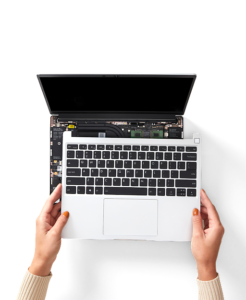
Framework Laptop image used with attribution to Framework
Pricing
Framework’s transparent pricing model offers configurations at two levels:
Pricing aligns with premium Ryzen HS performance and modular GPU support—expect US $1,200+ depending on specs .
Pros & Cons
✅ Pros
Truly modular and repairable—parts available and upgradeable
Customizable port layout to suit your use
DIY edition reduces entry cost and appeals to tinkerers
Swappable mainboards enable CPU upgrades across generations
Strong sustainability message, refurbishing, and open firmware
⚠️ Cons
Premium pricing compared with sealed competitors
Older peripherals (webcam, keyboard) can feel dated
Battery life trails behind leading ultrabooks
Performance modest in entry CPU options (e.g., i3, Ryzen 7040U)
Summary
The Framework Laptop is a bold step forward for user empowerment in computing. It bucks the sealed, disposable model by offering full component access, part-level support, and upgrade paths spanning beyond typical warranty periods. The expansion card architecture lets you truly personalize your machine.
Whether it’s the ultraportable Laptop 12, the balanced Laptop 13, or the powerful Laptop 16, Framework nails the ethos of sustainability and flexibility—though often at a cost premium and with some older hardware quirks.
Verdict: Should You Buy It?
Yes, if you:
Value repairability and component-level upgrades
Want a laptop that can evolve (CPU, RAM, ports, storage)
Care about sustainability and reducing e-waste
Enjoy customizing hardware and DIY builds
Maybe consider alternatives if you:
Prioritize top-tier performance per dollar (e.g., MacBook Air, XPS 13)
Need long battery life or premium media features
Prefer a truly sealed, maintenance-free notebook
Final Recommendation
For tech enthusiasts, longevity-focused professionals, and those tired of throwaway electronics, the Framework Laptop is a groundbreaking choice. It’s not for everyone—its strength lies in modularity rather than maximum specs. If your top goals are flame graphics benchmarks or all-day battery life, other laptops may serve you better. But if you want a tool that lasts, you can fix, and you can future-proof—Framework stands almost alone.
🧾 TL;DR:
What it is: Fully modular, repairable, customizable laptop (12″, 13″, 16″ sizes)
Price: DIY from $549–899; prebuilt from $799–1,829
Specs: Up to Ryzen AI 9 HX 370 (12-core), 96 GB RAM, 120Hz QHD+ display, swappable GPU
Best for: Tech-savvy users, DIYers, sustainability advocates
Not ideal for: Those needing max perf, long battery life, or sealed convenience
Check this out for the comparison to other laptops in your budget, or help configuring a Framework build?
Here’s a detailed comparison between the Framework Laptop and its competitors from Lenovo and Asus, focusing on similar premium thin-and-light or modular models. This helps determine which one is the best fit based on upgradeability, performance, value, and purpose.
Comparison Table
Feature
Framework Laptop 13
Lenovo ThinkPad X1 Carbon Gen 12
Asus ZenBook 14 OLED (UX3405)
CPU
Up to AMD Ryzen AI 9 HX 370 or Intel Core Ultra 7
Intel Core Ultra 7 155H
Intel Core Ultra 7 155H
RAM
Up to 96 GB (upgradeable SO-DIMM)
Up to 64 GB (soldered)
32 GB LPDDR5X (soldered)
Storage
M.2 NVMe SSD (user upgradeable)
M.2 NVMe SSD (upgradeable)
M.2 NVMe SSD (upgradeable)
Display
13.5″, 2880×1920, 120Hz
14″, 2.8K OLED or WUXGA LCD
14″, 2.8K OLED, 120Hz
GPU
Integrated RDNA3 or optional eGPU module
Integrated only (Intel Arc)
Integrated only (Intel Arc)
Ports
4 swappable expansion cards
2× Thunderbolt 4, USB-A, HDMI
2× Thunderbolt 4, USB-A, HDMI
Battery
61 Wh
57–65 Wh
75 Wh
Weight
~1.36 kg
~1.09 kg
~1.20 kg
Repairability
Excellent (fully modular)
Moderate (some parts replaceable)
Limited (non-modular)
Price (USD)
$899–$1,829
$1,600–$2,200
$1,300–$1,700
Breakdown
🔧 Upgradeability & Repairability
Framework Laptop dominates here. Everything from the mainboard to ports and even the screen is user-replaceable or upgradeable.
ThinkPad X1 Carbon allows SSD replacement, but RAM is soldered. Battery, keyboard, and screen replacements are possible but harder.
ZenBook 14 OLED has soldered RAM, sealed chassis, and limited serviceability.
Winner: 🥇 Framework Laptop
Performance
All three offer Intel Core Ultra CPUs (or AMD Ryzen AI in Framework). Performance is comparable in productivity tasks.
However:
Framework offers up to 96 GB RAM and optional GPU expansion (on the 16″ model), making it better for devs, creators, or engineers.
Lenovo and Asus use faster LPDDR5X RAM (though not upgradable), better for quick access but less flexible.
Winner: Tie — depends on your use case.
For raw flexibility and RAM ceiling: Framework.
For speed out-of-box: Asus/Lenovo.
Display Quality
ZenBook 14 OLED and ThinkPad X1 Carbon OLED variant both have stunning 2.8K OLED panels with deep blacks and vibrant colors.
Framework has a high-res 3:2 matte display (2880×1920) at 120 Hz—great for productivity, less eye-catching than OLED.
Winner: 🥇 Asus ZenBook 14 OLED (for media) Framework wins for aspect ratio and matte workspace if you’re not after OLED glamor.
Lightweight business ultrabook with enterprise features
ThinkPad X1 Carbon
Media consumption, lightweight premium design
Asus ZenBook 14 OLED
🟢 Final Thoughts
The Framework Laptop isn’t for everyone—but for tech-savvy users, developers, and sustainability-minded buyers, it’s unmatched. It’s not just a laptop—it’s a long-term computing platform.
Buy Framework if you want to own your laptop—tinker, upgrade, and repair on your terms.
Choose ThinkPad if you want a rock-solid business laptop with excellent support.
Pick ZenBook if you want a beautiful OLED screen in a slim, fast package with no intention of opening the chassis.
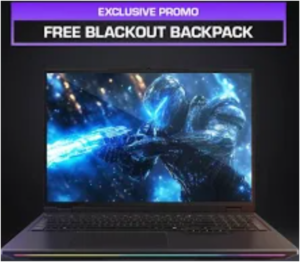
Check this out. Here’s a comprehensive review of the Aftershock X‑16 PRO, covering its design, performance, display, thermals, battery life, keyboard, and overall value.
🖥️ Design & Build Quality
The X‑16 PRO features a premium all-aluminium chassis that feels robust—“built like a tank” according to one user—while maintaining an understated, minimalist look suited for both gaming and professional settings youtube.com+15reddit.com+15canbuyornot.com+15aftershockpc.com.au. Available in configurations up to Intel’s 24-core Core Ultra 9 275HX and NVIDIA’s RTX 5090, it delivers desktop-grade power in a notebook form aftershockpc.com.au+2aftershockpc.com.au+2reddit.com+2.
🌈 Display
A standout feature is its 16″ 2560×1600 Mini‑LED panel, offering up to 300 Hz refresh rate and peak brightness reaching 1,200 nits on higher-end variants aftershockpc.com.au+1tiktok.com+1. Reddit users rave about the display, calling it “gorgeous and super bright,” though noting minor limitations in local dimming performance reddit.com+1canbuyornot.com+1.
⚙️ Performance
The base configuration pairs the Core Ultra 9 275HX with the RTX 5070 Ti, scaling up to RTX 5090 on premium models. Users report strong thermals and stable performance:
The laptop supports optional closed‑loop water cooling (“glacier module”) for improved thermals, quieter operation, and potential clock boosts when docked aftershockpc.com.au.
🔋 Battery Life & Power
Equipped with a 99 Wh battery, the laptop delivers 3–4 hours of general use on battery with reduced brightness and GPU power reddit.com. While gaming or heavy workloads significantly reduce longevity, this runtime aligns with expectations for a high-performance gaming system.
🎧 Keyboard & Input
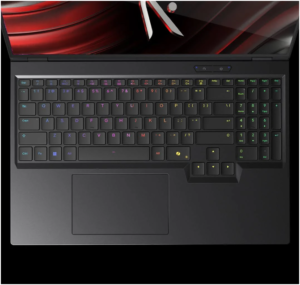
The full-size RGB membrane keyboard includes a numpad and features per-key RGB, anti-ghosting, and N‑Key rollover. Built for a responsive, quiet typing experience, it scores highly for both efficiency and comfort tiktok.com+8aftershockpc.com.au+8tiktok.com+8.
🎙️ Speakers
While adequate for everyday tasks and media consumption, the speakers are average—similar to most gaming laptops reddit.com.
🚨 BIOS & Undervolting
One limitation is limited BIOS support—users are unable to undervolt the CPU reddit.com+1aftershockpc.com.au+1. This may affect enthusiasts seeking deeper thermal and power optimization.
🧊 Thermals & Cooling
In Overboost mode, core temperatures hover in the high 80s to low 90s °C. The optional water-cooling module significantly improves cooling efficiency and fan noise—an attractive option for power users reddit.com.
🔄 Unique Features
Mux switch support adds control over routing between GPU and integrated graphics .
Thunderbolt 4 port connects directly to the dGPU for external display adapter use reddit.com.
No G‑Sync support, but the high-refresh panel compensates reddit.com.
✅ Pros & Cons
✅ Pros
⚠️ Cons
Sturdy and premium build
Limited BIOS undervolt control
Exceptional Mini‑LED display
Poor battery life under load
Desktop-class performance with RTX 50-series
Local dimming could be better
Optional water cooling support
Speakers are only average
Good keyboard (RGB, N-key)
🏆 Verdict
The Aftershock X‑16 PRO is an elite gaming laptop for those desiring desktop-level performance in a portable package. Its stunning Mini‑LED display, premium build, and powerful RTX 50-series GPUs make it ideal for gamers, creators, and professionals. While limitations like BIOS undervolting and moderate battery life exist, the core strengths far outweigh the drawbacks—especially with optional water cooling and the presence of a Mux switch.
📦 Model Variants & Pricing
Here are the key configurations available:
Entry‑high performance – $3,050.00
Aftershock X‑16 PRO – Core U9 275HX + RTX 5070 Ti
Flagship desktop‑class power – $5,299.00
Aftershock X‑16 PRO – Core U9 275HX + RTX 5090
Ask about this
Aftershock X‑16 PRO (RTX 5070 Ti) – Balanced performer with excellent display and build at ~S$4,000–4,500 in Singapore, offering solid thermals and near-peak capabilities.
Aftershock X‑16 PRO (RTX 5090) – Ultimate flagship model targeting users wanting the best mobile graphics available today.
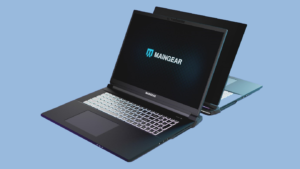
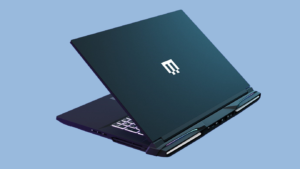
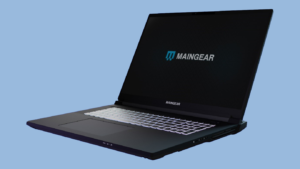
Maingear Ultima 18: Desktop-Class Power in a Backpack
When Maingear launched the Ultima 18 on June 11, 2025, it wasn’t just unveiling another gaming laptop—it was redefining the category. Built in collaboration with Clevo, this 18‑inch beast aims to deliver desktop-level performance—without compromising portability. As Maingear CEO Wallace Santos says, it’s “a no‑compromise desktop‑class gaming rig that fits in a backpack” en.wikipedia.org+14forbes.com+14laptopmag.com+14tomsguide.com+3notebookcheck.net+3venturebeat.com+3.
The Heart of the Beast: CPU & GPU
Intel Core Ultra 9 275HX
At the core of the Ultima 18 is Intel’s brand-new Core Ultra 9 275HX processor. With 24 cores and a turbo boost up to 5.4 GHz, this “Arrow Lake” CPU is nearly as fast as the slightly higher-clocked 285HX variant released earlier this year forbes.com+8pcworld.com+8notebookcheck.net+8. The multi-core performance makes it equally capable for intense gaming, multitasking, content creation, and even AI workloads.
NVIDIA GeForce RTX 5090 / RTX 5080
pa plenty of desktop-level graphics. Users can choose between the RTX 5080 or the flagship RTX 5090 Laptop GPU—each equipped with up to 24 GB of GDDR7 VRAM and a 175 W TGP—to dominate AAA titles and creative workflows tech.yahoo.com+12maingear.com+12venturebeat.com+12. It’s a GPU lineup typically reserved for top-tier desktops, now mobile.
Memory & Storage: No Compromises
Perhaps the most impressive specs come in RAM and storage:
Up to 192 GB DDR5 memory across four SO-DIMM slots (dual‑channel), with 48 GB modules—ideal for extreme multitasking or large-scale creative projects notebookcheck.net.
Four M.2 NVMe SSD slots, including one PCIe Gen5x4 and three Gen4x4 bays, supporting up to 32 TB total storage—speed and expandability at its best pcworld.com+6maingear.com+6notebookcheck.net+6.
Inside is an advanced cooling system with adjustable fan profiles controlled via Maingear’s Control Center. Choose Performance mode for full power or Entertainment mode for quiet gaming tech.yahoo.com+8maingear.com+8maingear.com+8. Plus, NVIDIA Advanced Optimus intelligently switches between integrated and discrete graphics to extend battery life when unplugged laptopmag.com+9forbes.com+9venturebeat.com+9.
Battery & Mobility
Despite its power, the Ultima 18 packs a hefty 98 Wh battery and ships with a 330 W power brick designed to fit in a backpack. It also supports USB‑C charging, letting you top up on the go prnewswire.com+12forbes.com+12venturebeat.com+12. Though weighing around 8.8 lb (3.99 kg), Maingear has succeeded in keeping it travel-friendly compared to many desktop replacements forbes.com+8laptopmag.com+8notebookcheck.net+8.
Connectivity & I/O
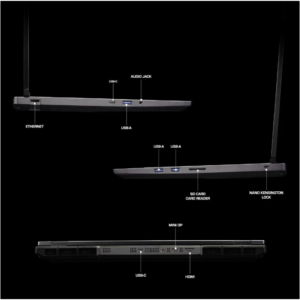
Leveling up beyond typical laptops, the Ultima 18 offers:
Large, low‑friction touchpad, thoughtfully placed rear I/O, and absence of bloatware thanks to a clean Windows 11 install and Maingear’s optimization software .
Desktop-level performance with cutting-edge CPU and GPU options.
Huge memory and storage ceiling — up to 192 GB RAM and 32 TB SSD.
Spectacular 4K 200 Hz panel—rare in mobile machines.
Comprehensive connectivity including Thunderbolt 5 and dual LAN.
Support and build quality consistent with Maingear’s boutique reputation.
While heavy, expensive, and not meant for casual travel, the Ultima 18 appeals to users seeking desktop power in a backpack—ideal for pro gamers, streamers, content creators, and anyone needing future-proofed horsepower.
Verdict
The Maingear Ultima 18 is a niche product—but within that niche, it’s unmatched. It combines desktop-like performance, a stunning display, flexible upgradability, and premium design all in one machine. It’s not for everyone—its weight and price reflect that—but for those who demand maximum power on the go, it’s a serious contender.
Pros:
Desktop-grade CPU & GPU
Massive RAM & storage limits
Beautiful 4K, 200 Hz display
Rich connectivity
Exceptional support
Cons:
– Heavy (8.8 lb)
– Limited battery life under load
– Premium price
Final Thoughts
If you refuse to compromise on power, speed, or upgradeability, Maingear’s Ultima 18 deserves serious consideration. With its high-end specs, future-facing features, and Maingear’s signature support, it redefines what a gaming laptop can be: a portable desktop powerhouse.
Let me know if you’d like benchmarks, comparisons with rivals like the Razer Blade 18 or MSI Titan 18, or deeper insights into performance in specific games or workloads!