Select Page

Lenovo Legion Go Review

Lenovo Legion Go: A Gamers’ Dream Handheld Console

I bought the Lenovo Legion Go. It is an ambitious entry into the world of handheld gaming, blending the portability of a console with the performance of a gaming laptop. As a proud owner of this device, I’ve spent hours exploring its capabilities, and here’s my detailed review of what it offers.

Design and Build Quality

From the moment you unbox the Lenovo Legion Go, it’s clear that this device means business. The design is sleek and sturdy, with a matte finish that resists fingerprints. Its ergonomic grips ensure comfort during extended gaming sessions, and the detachable controllers—a nod to the Nintendo Switch—add versatility. The build quality feels premium, with no creaky joints or flimsy parts, giving you confidence in its durability.

The 8.8-inch QHD+ display is a standout feature. With a 16:10 aspect ratio and a refresh rate of 144 Hz, it’s perfect for modern games. The colors are vibrant, and the screen’s brightness ensures good visibility even in well-lit environments. Gaming feels immersive, whether you’re indoors or outdoors. The thin bezels further enhance the overall viewing experience, making it feel more like a high-end gaming screen than a typical handheld console.

Weighing in at just over 850 grams, the Legion Go is heavier than some competitors, but the weight feels balanced in hand. This extra heft is likely due to its robust hardware and battery, a trade-off many gamers will find acceptable for the performance it delivers.

Performance

Under the hood, the Legion Go is powered by AMD’s Ryzen Z1 Extreme processor, paired with up to 16GB of LPDDR5X RAM. This combination delivers smooth gameplay for even the most demanding titles. In my testing, AAA games like Cyberpunk 2077 and Elden Ring ran seamlessly at medium to high settings. Frame rates hovered consistently around 60fps, even during graphically intensive scenes, which is impressive for a handheld device.

The Legion Go also shines in multitasking. I tested running multiple applications, including a game, a browser, and Spotify, without any noticeable lag. This makes it suitable not just for gaming but also for general productivity tasks, provided you have the right peripherals.

One of the Legion Go’s unique selling points is its ability to connect to Lenovo’s external GPU, the Legion BoostStation, for enhanced performance. This feature is a game-changer for those who want desktop-level gaming while at home. While the BoostStation is sold separately and adds to the overall cost, it’s a worthwhile investment for hardcore gamers who need extra power for 4K gaming.

Controls and Usability

The detachable controllers, called TrueStrike, feel great in hand. They’re responsive, with tactile buttons and analog sticks that rival dedicated gaming controllers. The trackpads on each controller add flexibility, especially for strategy games and productivity tasks. Additionally, the built-in kickstand allows you to prop up the device for tabletop gaming.

The joysticks have a comfortable range of motion, and the triggers offer just the right amount of resistance. These details show Lenovo’s attention to the gaming experience. The inclusion of haptic feedback further enhances immersion, making every action feel impactful.

Navigating the Windows 11 interface is smooth, thanks to the touch screen and optimized software tweaks. However, the experience may feel a bit clunky compared to consoles like the Steam Deck, which use custom OS solutions tailored for gaming. Lenovo’s custom Legion Space software helps mitigate this by serving as a central hub for games, system settings, and performance optimization.

Battery Life

Battery performance is decent, with the 49.2Wh battery offering around 2-4 hours of gameplay, depending on the title and settings. For less demanding indie games or casual browsing, the battery stretches closer to 5 hours. Charging is fast, thanks to its 65W USB-C charger, which can bring the battery from 0% to 50% in just about 30 minutes.

However, for long gaming sessions on the go, carrying a power bank is advisable. The device’s power-hungry hardware and high-refresh-rate display naturally consume more energy than simpler handheld consoles.

Audio and Connectivity

The dual speakers deliver clear and balanced sound, with noticeable bass and crisp highs. While the audio isn’t groundbreaking, it’s more than adequate for handheld gaming. For a better experience, connecting Bluetooth headphones or using the 3.5mm jack is recommended.

Connectivity options include Wi-Fi 6E and Bluetooth 5.2, ensuring stable connections for online gaming and accessory pairing. The device also features a microSD card slot, expanding its storage potential beyond its built-in 1TB SSD. This makes it easy to store large game libraries without worrying about running out of space.

Software and Customization

Running on Windows 11, the Legion Go provides the flexibility of a full PC experience. This means you can install any PC game launcher, from Steam and Epic Games to Xbox Game Pass and more. The Legion Space software serves as an intuitive interface for launching games and tweaking performance settings.

Customization options are plentiful. You can fine-tune the performance, including adjusting the power limit and fan curves, to prioritize battery life or performance. This level of control ensures that the device caters to both casual gamers and enthusiasts.

Pricing and Value

The Lenovo Legion Go is priced at $699 for the base model, with higher configurations costing more depending on the storage and RAM options. While this price point is higher than some competitors like the Steam Deck, the Legion Go justifies its cost with superior hardware, a larger QHD+ display, and the versatility of Windows 11.

For those considering additional accessories like the Legion BoostStation or carrying cases, the total investment could climb, but it’s still a reasonable price for a portable device that doubles as a gaming PC.

Comparison with Competitors

The Legion Go’s most direct competitors are the Steam Deck and ASUS ROG Ally. While the Steam Deck is more affordable and benefits from a streamlined Linux-based gaming OS, it falls short in display quality and raw performance. The ASUS ROG Ally offers similar hardware but lacks some of the Legion Go’s features, like detachable controllers and the ability to connect to an external GPU.

For gamers who value display quality, performance, and versatility, the Legion Go stands out as a compelling option.

Verdict

The Lenovo Legion Go is an impressive device for gaming enthusiasts who crave portability without sacrificing performance. Its robust design, powerful hardware, and versatility make it a worthy competitor in the handheld gaming market. While the Windows interface could use more gaming-specific refinements, the overall package is compelling.

With a starting price of $699, the Legion Go delivers excellent value for its features. It’s an ideal choice for gamers who want a device that bridges the gap between console gaming and PC performance. Whether you’re gaming on the couch, traveling, or setting up a full gaming station at home, the Legion Go has you covered.

If you’re looking for a premium handheld gaming experience with the flexibility of a Windows PC, the Lenovo Legion Go is an excellent choice. It may not be perfect, but its potential and value are undeniable.

Microsoft PC Manager

Protect your PC with quiet, reliable performance you can trust.

Microsoft continues to enhance the user experience with new tools and utilities designed to optimize system performance and maintain security. One such innovation is the Microsoft PC Manager, a utility designed to help users of Windows 10 and Windows 11 manage their PCs more effectively. This article explores the features, benefits, and usability of Microsoft PC Manager, making it an essential read for anyone looking to maximize their Windows performance.

What is Microsoft PC Manager?

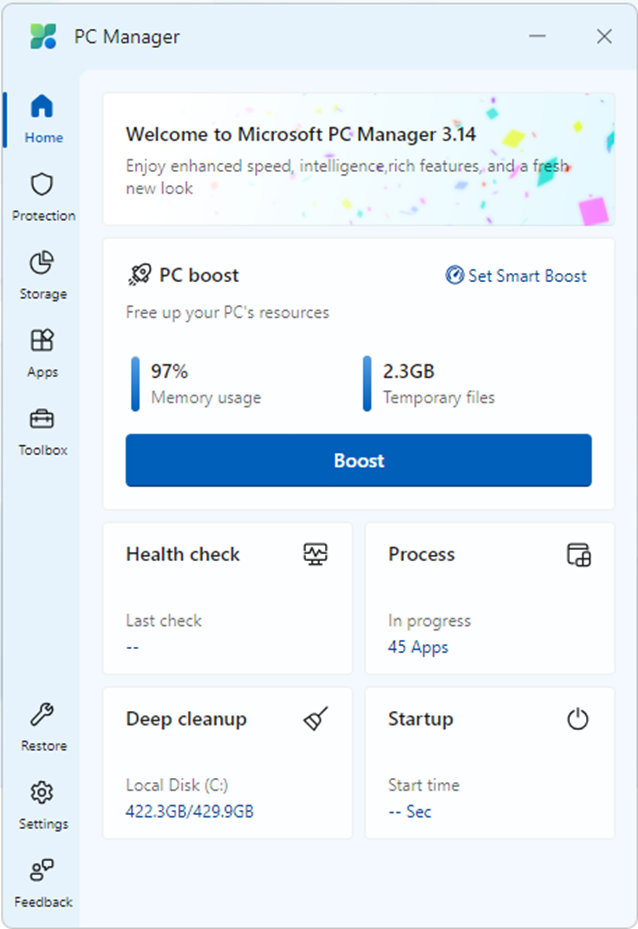
Microsoft PC Manager is an all-in-one utility designed to provide users with a comprehensive suite of tools to clean, optimize, and secure their Windows PCs. Tailored for both Windows 10 and Windows 11, this tool is especially beneficial for those who want a streamlined solution for system maintenance without resorting to third-party software.

Features of Microsoft PC Manager

Microsoft PC Manager includes several powerful features that cater to the needs of both casual users and tech enthusiasts:

1. System Cleanup

  • The PC Manager offers an intuitive cleanup tool to remove temporary files, cache, and other unnecessary data clogging the system. By freeing up disk space, this feature helps improve system performance and ensures a smoother computing experience.

2. Performance Booster

  • With a single click, the Performance Booster optimizes the system by clearing RAM and closing background apps, enhancing speed and responsiveness. This is especially useful for multitasking or running resource-intensive applications.

3. Startup Manager

  • One of the culprits behind slow boot times is the number of programs that start with Windows. The Startup Manager lets users identify and disable unnecessary startup items, speeding up the boot process.

4. Security Scans

  • PC Manager includes security scanning capabilities to detect potential threats like malware and vulnerabilities. It integrates seamlessly with Windows Defender, providing an additional layer of security for users.

5. Windows Update Management

  • Keeping your system updated is crucial for security and performance. The PC Manager simplifies update management, ensuring that critical patches and updates are installed on time.

6. File Management Tools

  • Duplicate file detectors and large file management tools help users locate and remove redundant or space-hogging files, further optimizing storage.

Benefits of Microsoft PC Manager

1. Easy to Use

Microsoft PC Manager is designed with a user-friendly interface, making it accessible to users of all technical skill levels. Its clean layout and straightforward features mean you don’t need to be a tech guru to optimize your PC.

2. No Need for Third-Party Tools

Many Windows users rely on third-party cleanup and optimization software. With PC Manager, you get a trusted, built-in solution directly from Microsoft, ensuring compatibility and security.

3. Lightweight Performance

Unlike some third-party utilities that consume significant system resources, PC Manager is lightweight and works efficiently without slowing down your PC.

4. Seamless Integration with Windows

Since it’s developed by Microsoft, PC Manager integrates perfectly with existing Windows features, such as Windows Defender and the Task Manager, for an optimized experience.

Who Should Use Microsoft PC Manager?

Microsoft PC Manager is ideal for:

  • Users who want an easy and reliable way to maintain their PCs.
  • Those running older systems who need a performance boost.
  • People seeking a lightweight alternative to third-party optimization tools.
  • Anyone looking for enhanced security features directly tied to Windows updates and Defender.

How to Get Microsoft PC Manager

PC Manager can be downloaded directly from Microsoft’s website. It supports both Windows 10 and Windows 11, ensuring compatibility with a broad user base.

Conclusion

Microsoft PC Manager is a versatile tool that combines performance optimization, security, and ease of use in a single package. Whether you’re using Windows 10 or have upgraded to Windows 11, PC Manager is an essential utility to keep your system running smoothly. With its robust feature set and integration with Microsoft’s ecosystem, it’s a must-have for Windows users seeking a reliable and efficient way to manage their PCs.

If you’re using Windows 10 or Windows 11, PC Manager is definitely worth exploring. With its robust features and seamless integration, it stands out as an essential utility for keeping your PC clean, fast, and efficient.

https://pcmanager.microsoft.com/en-us


Latest Technology in Computers and Operating Systems (2025)

Introduction

The ever-evolving landscape of computers and operating systems is characterized by innovation and advancements that redefine the user experience. From quantum computing to AI-driven operating systems, the latest technologies are paving the way for efficiency, security, and user customization. This article explores the cutting-edge developments in computer hardware and operating systems, focusing on their features, functionality, and future potential.


Latest Technologies in Computers

1. Quantum Computing

Quantum computing is revolutionizing the field of computation by leveraging the principles of quantum mechanics. Unlike classical computers that use binary bits (0s and 1s), quantum computers utilize quantum bits or qubits, which can exist in multiple states simultaneously.

Features:

  • Exponential Computing Power: Quantum computers can solve complex problems, like cryptographic calculations and molecular simulations, exponentially faster than traditional computers.
  • Parallelism: Qubits enable simultaneous operations, enhancing processing speed.
  • Applications: Used in pharmaceuticals, artificial intelligence (AI), and financial modeling.

2. AI-Powered Hardware

Modern computers integrate AI capabilities into hardware components for improved functionality. This includes AI accelerators, such as TPUs (Tensor Processing Units) and GPUs designed for machine learning tasks.

Features:

  • Edge AI Processing: AI chips are embedded in devices to perform tasks locally, reducing latency.
  • Enhanced Automation: Automates repetitive tasks and optimizes performance.
  • Energy Efficiency: AI-driven power management extends battery life in laptops and smartphones.

3. Neuromorphic Computing

Neuromorphic systems mimic the human brain’s neural networks, enabling faster and more energy-efficient processing.

Features:

  • Real-time Learning: Capable of on-device training and inference.
  • Adaptive Systems: Used in robotics, autonomous vehicles, and IoT devices.
  • Lower Power Consumption: Designed for energy-efficient operations.

Latest Operating System Technologies

1. AI-Integrated Operating Systems

AI is transforming operating systems into adaptive and intelligent platforms that learn from user behavior and preferences.

Features:

  • Personalized User Experience: Tailors system settings and app suggestions.
  • Voice and Gesture Recognition: Natural interfaces for seamless interaction.
  • Proactive Maintenance: Predicts and resolves system issues automatically.

2. Lightweight Cloud-Based OS

Cloud operating systems are designed for lightweight performance, leveraging the cloud for storage and processing.

Features:

  • Minimal Hardware Dependency: Runs efficiently on basic hardware.
  • Instant Updates: Updates are managed centrally, reducing user effort.
  • Data Accessibility: Seamless access to files and apps across devices.

3. Blockchain-Enabled Security

New operating systems are integrating blockchain technology to enhance security and data integrity.

Features:

  • Decentralized Authentication: Ensures secure login without central servers.
  • Data Tamper-Proofing: Protects sensitive data using blockchain immutability.
  • Smart Contracts Integration: Automates and secures transactions.

Key Innovations Across Systems

1. Virtual and Augmented Reality (VR/AR) Support

Operating systems are incorporating native VR and AR capabilities for immersive user experiences.

Features:

  • Seamless Integration: Simplifies development for VR/AR applications.
  • Low Latency: Ensures smooth and responsive interactions.
  • Gaming and Professional Tools: Enhances gaming, training, and design applications.

2. Energy-Efficient Performance

Operating systems are optimizing power usage to extend battery life in portable devices.

Features:

  • Intelligent Power Allocation: Dynamically adjusts resource usage based on activity.
  • Eco Modes: Dedicated modes for conserving energy during idle periods.

3. Unified Ecosystem

Modern operating systems aim to create a unified experience across multiple devices.

Features:

  • Cross-Device Synchronization: Provides a seamless experience across smartphones, PCs, and tablets.
  • Shared Resources: Allows sharing of apps, settings, and files effortlessly.

Conclusion

The latest computer and operating system technologies are breaking barriers in performance, efficiency, and user experience. Quantum and neuromorphic computing are pushing the limits of processing power, while AI and blockchain are making systems smarter and more secure. As these technologies evolve, they promise a future where computing is not only more powerful but also more accessible and intuitive.