Select Page

Combining Tech with a Treat: Unboxing the Samsung Galaxy A55 (Awesome Lemon) with Hershey’s Kisses Milk Chocolate

When Technology Meets a Taste of Happiness

There are moments in life when the smallest things bring the biggest smiles — the rustle of a new gadget’s box, the aroma of fresh chocolate, and the anticipation of a first touch. That was exactly my mood the day I bought the Samsung Galaxy A55 (Awesome Lemon, 8GB RAM, 256GB Storage).

As the package arrived, I couldn’t resist pairing the experience with a little indulgence: a bowl of Hershey’s Kisses Milk Chocolate beside me. It felt like the perfect duo — technology for the curious mind, and chocolate for the soul.

Unboxing tech can sometimes feel clinical, but when you unwrap each moment with sweetness (literally), it becomes something more memorable — a multisensory celebration of both innovation and comfort.
 

Introduction: A Treat While Unboxing

Some people unbox gadgets with a knife. I unbox them with chocolate.
It was a weekend I’d been waiting for — the day my new Samsung Galaxy A55 finally arrived. The excitement was real, but I decided to take it up a notch. Before slicing through the tape, I grabbed a handful of Hershey’s Kisses Milk Chocolates, poured them into a small bowl, and set them right beside the box.

Why not make this a full-on treat for the senses? The sweet aroma of milk chocolate, the rustle of foil, and the anticipation of revealing a new phone — it felt like Christmas morning, only with a tech twist.

A Sweet Start: The Unboxing Moment

The first thing I did was tear open a silver foil Hershey’s Kiss, letting that creamy, familiar chocolate melt on my tongue. Then, I carefully peeled off the plastic seal of the phone box. It’s funny — both gestures felt the same: gentle, exciting, and rewarding.

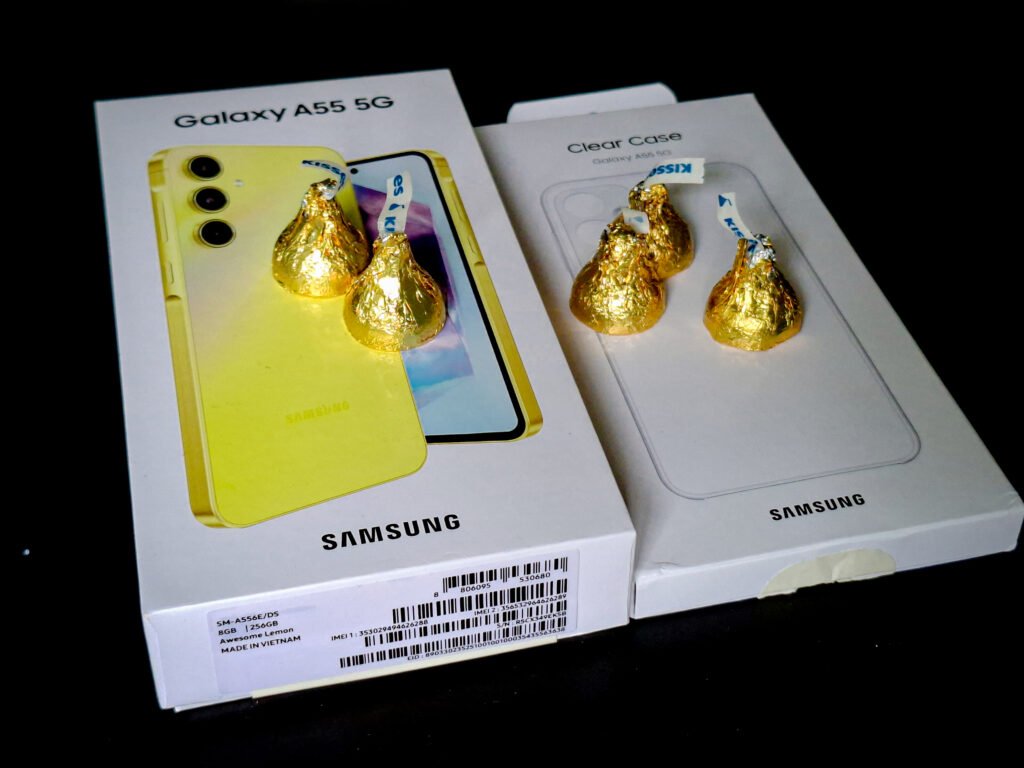
Inside lay the Samsung Galaxy A55, wrapped in soft protective film. Its Awesome Lemon color instantly brightened the moment — a soft pastel yellow that felt cheerful, fresh, and full of character. I paused to unwrap another Kiss, smiling as the foil crinkled between my fingers.

Samsung didn’t pack a charger (as usual these days), just the USB-C cable and documentation, but the star of the show was enough to make my day. That glossy lemon hue practically glowed under my desk light — like a slice of sunlight trapped inside glass.


Design and Feel: Holding Sunshine in Your Hands

If phones had personalities, the A55 in Awesome Lemon would be the optimist of the bunch. Its matte glass back feels premium, framed by sturdy aluminum edges that give it a reassuring heft (around 213 g).

While some midrange phones feel light and plasticky, this one feels solid — more flagship than budget. The edges are neatly chamfered, the button placement is comfortable, and that unique “Key Island” power-volume cluster gives it extra flair.

I leaned back, took a bite of chocolate, and admired how Samsung balanced minimalism and playfulness. Lemon isn’t your everyday color choice, but that’s what makes it stand out — it’s a statement that says, “I’m different, and I’m proud of it.”

Display: Bright, Smooth, and Delightful

Once I powered it on, the 6.6-inch FHD+ Super AMOLED display came to life. I was immediately greeted by crisp text, deep blacks, and lively colors. The 120 Hz refresh rate made scrolling buttery smooth — like the way melted Hershey’s chocolate coats your mouth in one rich sweep.

Watching YouTube clips, browsing photos, and checking messages all felt seamless. The HDR10+ support adds vibrancy, making even mundane videos feel cinematic. And even outdoors, the brightness level handled Singapore’s harsh sunlight surprisingly well.

If you’re a visual person, this screen is pure joy. Whether you’re editing photos, watching Netflix, or just admiring wallpapers, the A55 makes every pixel feel alive.

Performance and Storage: A Reliable Everyday Partner

Under the hood, the Exynos 1480 processor with 8 GB RAM and 256 GB storage handles multitasking like a pro. I ran several apps — Chrome, Spotify, Instagram, and YouTube — while still browsing files and replying to messages, and the phone never lagged.

Gaming-wise, casual titles like Mobile Legends and Subway Surfers ran smoothly. It’s not a powerhouse like the S24 Ultra, but for daily tasks and light gaming, it’s excellent.

The large 256 GB storage is another sweet spot — no more deleting photos or videos to make room. And if that’s not enough, Samsung still supports expandable memory through microSD, which is rare in 2025.

Battery life deserves applause too. The 5,000 mAh battery comfortably lasts a full day of calls, browsing, video streaming, and Bluetooth music. It supports 25 W fast charging, so even when it’s running low, a short top-up gets you through the day.

Camera: Snapping Memories in Living Color

Next up was the fun part — testing the camera!

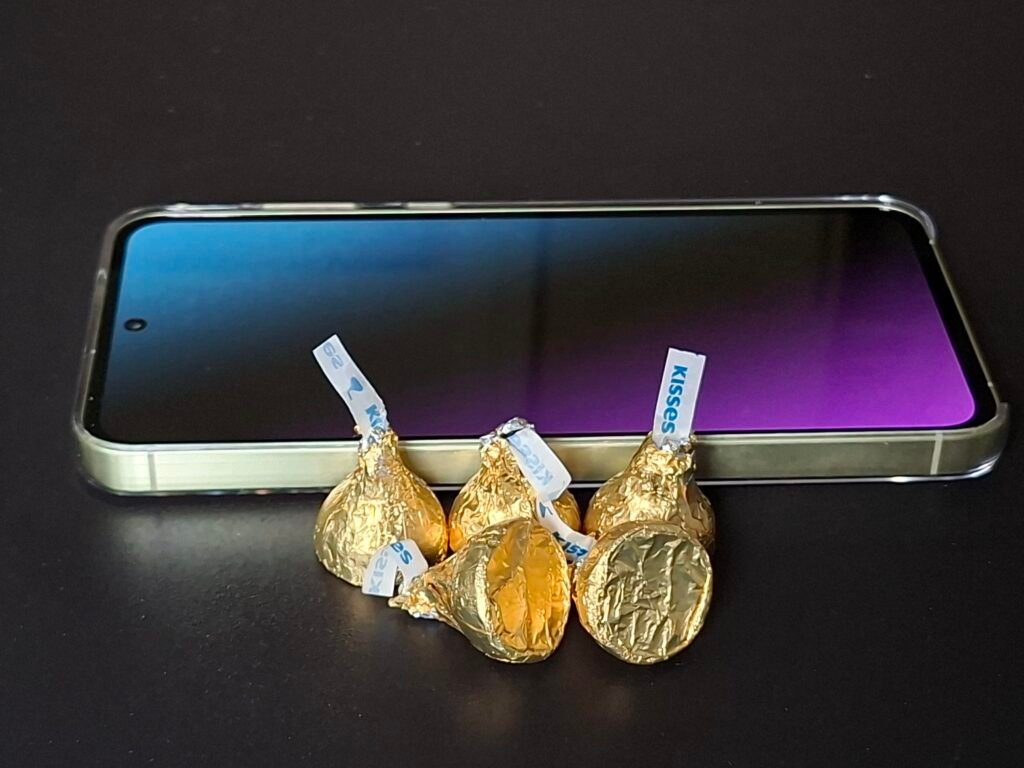
The 50 MP main sensor with Optical Image Stabilization captures crisp, detailed shots. I placed a few Hershey’s Kisses on my table, their shiny silver foils catching the afternoon light. The A55 nailed the colors — silvery whites, subtle shadows, and the creamy tones of the chocolate peeking out.

The 12 MP ultra-wide lens is great for scenic shots, and the 5 MP macro lets you get close enough to see every crease on a chocolate wrapper. Selfies from the 32 MP front camera were flattering and bright, even under indoor lighting.

Videos are smooth too, with 4K at 30 fps recording that’s perfect for vlogs or TikToks. The stabilization does a fine job keeping your shots steady even if your hand shakes slightly — like when you’re juggling chocolate and camera at the same time!

Software Experience: Clean, Smart, and Fun

Running Android 14 with One UI 6, the Galaxy A55 feels intuitive and polished. Samsung’s interface has matured into one of the best Android skins — organized menus, customizable themes, and useful features like Smart View, Quick Share, and App Pairs for multitasking.

I appreciate that Samsung commits to four major OS upgrades and five years of security updates, ensuring the phone stays secure and relevant. That kind of long-term promise adds serious value to a mid-range device.

And while you won’t find flagship perks like wireless charging or 8K video, you do get IP67 water and dust resistance, which is rare in this price segment.

The Sweet Companion: Hershey’s Kisses Milk Chocolate

Let’s talk about the real MVP of this unboxing — those tiny, delightful Hershey’s Kisses.

Each piece, wrapped in shiny foil with its signature paper plume, carries nostalgia and warmth. The smooth milk chocolate flavor hits that perfect balance between creamy and sweet, making it almost impossible to eat just one.

While waiting for the phone’s software updates to install, I found myself slowly unwrapping another Kiss, pairing the creamy melt with the excitement of setting up a new device. The taste lingered softly, just like the glow of the A55’s Lemon finish.

There’s something poetic about it — chocolate and technology. Both bring comfort in their own way. One feeds your curiosity, the other your cravings. Together, they make an ordinary afternoon feel like a celebration.

Pros and Cons Summary

👍 What I Loved

  • Vibrant Awesome Lemon color — fresh, eye-catching, and unique.

  • 120 Hz AMOLED display — bright, smooth, and immersive.

  • Solid build quality with glass and aluminum frame.

  • Dependable performance for everyday use.

  • Generous 256 GB storage with microSD expansion.

  • IP67 water and dust resistance.

  • Reliable 50 MP camera for great daylight shots.

  • Strong software support with years of updates.

👎 What Could Be Better

  • No charger included in the box.

  • 25 W charging could be faster.

  • Fingerprint scanner sometimes needs a retry.

  • Slightly heavy for smaller hands.

But honestly, none of these are dealbreakers. The overall experience is smooth, stylish, and sweet — just like the chocolates that kept me company.

A Treat Worth Every Bite and Byte

As I placed the phone on my desk beside the empty foil wrappers, I couldn’t help but smile. My Samsung Galaxy A55 Awesome Lemon wasn’t just another device — it was an experience. A moment of joy, color, and indulgence that blended technology with something simple and human: the pleasure of chocolate.

If you’re thinking about getting this phone, do it. It’s fun, it’s fast, and it’s beautiful. Pair it with your favorite treat — Hershey’s Kisses, gummy bears, or whatever makes you happy — and turn your next unboxing into something special.

Because in the end, life’s best moments aren’t just about specs and megapixels. They’re about the small joys — a burst of lemon yellow, a piece of chocolate melting slowly, and that little spark of happiness that makes technology feel personal.

Sweet Tech in Every Bite

Pairing the Samsung A55 with Hershey’s Kisses made this unboxing feel more human — a celebration of progress, wrapped in sweetness. The A55 isn’t trying to outshine flagships; it’s carving its own lane, where practicality meets polish.

It’s a phone that feels like it was designed for people who appreciate detail — those who pause to enjoy a moment, unwrap a chocolate, and admire how technology can be both powerful and comforting.

If you want a reliable daily driver that looks elegant, performs well, and lasts long, the Samsung Galaxy A55 delivers in spades. And if you want to elevate your unboxing ritual, pair it with a few Hershey’s Kisses — because every great gadget deserves a little sweetness on the side.

Final Rating

Design: 9/10
Display: 9.5/10
Performance: 8.5/10
Camera: 8.5/10
Battery: 9/10
Overall Experience: 9/10

Stay Tuned for the Next Treat

And that wraps up my sweet unboxing session with the Samsung Galaxy A55 — a phone that proves technology can be as comforting as a piece of chocolate. From its polished design to its powerful performance, the A55 definitely deserves a place among this year’s mid-range standouts.

But don’t put away your sweet tooth just yet — the tech journey isn’t over! 🍬
I’ll soon be back with another exciting review as Samsung prepares to unveil its next gem — the Samsung Galaxy A56. If the A55 is already this good, imagine what’s next on the menu.

So grab another Hershey’s Kiss, stay connected, and keep an eye on Oleohub.com for the next chapter of Tech Meets Treat!
Save You from Phone Disasters in Minutes

Acronis True Image 2026 Review – Backup Made Simple and Secure

Intro

Imagine you have a super-powerful copy machine for your computer—one that can take a snapshot of everything inside (your photos, homework, apps, settings) and then bring it back just like it was. That’s exactly what backup software does. But in today’s world, there are nasty things like viruses and ransomware that try to break into your computer and mess things up. So what if your backup tool could also watch out for those bad guys and help keep your computer safe?

That’s where Acronis True Image 2026 comes in. It’s like a two-in-one hero: both your “computer copy machine” and your “computer bodyguard.” In this review, we’ll walk through what it can do, what computers it works on, how you use it, and what’s good or not-so-good about it. I’ll try to keep it simple but also cover the important stuff.

Acronis True Image Sale

What Is Acronis True Image 2026?

Acronis True Image 2026 is software made to protect your computer data. “Protect” has two parts here:

Backup & recovery — making copies of your files and your whole system, so you can restore them if something bad happens (like you delete something by mistake, or your hard drive breaks).

Security & threat protection — watching out for malware, ransomware, and vulnerabilities so that bad software can’t damage your files or your backups.

In 2026, Acronis has added a new feature: patch management. That means the software can help update other programs on your computer so they don’t have security holes that hackers can use. 

So, it’s not just about copying files, but also keeping them safe.


Specifications & Compatibility (What Computers It Works On)

Here are the technical details of what Acronis True Image 2026 supports. Think of this as the “rulebook” of what it can do and what it can’t.


Operating Systems (Which computers it can run on)

  • Windows: It works on modern Windows versions. 

  • macOS: It also supports Apple computers with macOS. 

  • Mobile devices: Android and iOS devices can be backed up (for things like photos, contacts) using companion mobile apps.

    So your laptop, your Mac, your phone — it can help with all of them.

What kinds of storage and file systems it supports

To backup or restore, your files sit on storage (disks, drives, etc.). Here’s what Acronis supports:

  • Internal drives (where your computer is installed)

  • External drives (USB, Thunderbolt, etc.)

  • Network storage / NAS (other storage connected over your local network)

  • Cloud storage (Acronis Cloud) for offsite backups

It supports many file systems — that means how your data is organized on the drives:

  • For Windows: NTFS, FAT variants 

  • For macOS: APFS, HFS+ 

  • Also supports Linux file systems such as ext2, ext3, ext4, ReiserFS, Linux swap. 

  • For unsupported file systems, Acronis offers a “raw / sector-by-sector” mode, which copies every bit on the disk (even empty or unused parts). That is slower and less flexible. 

Also, backup files can be encrypted (locked so others can’t open them without a password) using AES encryption (strong encryption) to protect privacy. 

How You Use It (Step by Step)

Let’s walk through how someone would use Acronis True Image 2026 from start to finish. Think of this like instructions for a 5th grader (but with real detail).


Install and Setup

  • You download the software from Acronis’s website or get it via a subscription license.

  • After installing, you create or log into an Acronis account (needed especially if you use cloud features).

  • You choose what you want to back up (your whole computer, selected folders, or specific files).

  • You choose where to store backups (external drive, network drive, or Acronis Cloud).

  • Set schedule (when backups happen — daily, weekly, or continuous).

  • Turn on extra defenses: real-time protection, malware scans, and patch management.

Backup Modes & Strategies

Acronis gives several ways to back things up:

  • Full backup: copies everything you selected (big but complete).

  • Incremental backup: after a full backup, it only saves what changed since the last backup (saves space).

  • Differential backup: saves changes since the last full backup.

You can also do disk cloning — if you want to move your system from an old hard drive to a new one (like upgrading to SSD). Acronis will copy all data, system files, and software so you can use the new drive as if nothing changed. 

You can also sync files — which means keep two places (say, your computer and cloud) matching. But syncing is different from backup: sync means changes are mirrored, while backup keeps history. 

Running Backups

Once setup is done, backups can run automatically according to your schedule. You can also run a backup manually. The software works in the background. It may slow your computer a little while it’s copying large files, but usually it tries to work smoothly.

You should let it finish, or pause it if you need full speed for something else.

Restoring / Recovery

This is the “oh no something broke — now fix it” part.

  • You can restore individual files or entire folders via Acronis interface.

  • If your computer won’t start (because system files are broken), you can use rescue media / bootable USB (a special USB stick made earlier) to boot the computer and restore from backup.

  • It supports universal restore — meaning you can restore your system onto different hardware (if you get a new computer). Acronis will try to adjust drivers so the system works.

It’s very important to test your restore before you really need it — make sure your rescue USB works, and that backup files are valid.


Security & Patch Management (Added 2026)

This is what makes 2026 extra special.

  • Real-time monitoring / Active Protection: the program watches as you work, looking for signs of ransomware or malware. If something seems malicious, it can block changes or undo damage. 

  • On-demand antivirus scans: you can manually run scans of your computer to check for malware.

  • Vulnerability / patch scanner: it looks at your installed programs, finds security holes, and can automatically apply patches or notify you to update. 

  • Protecting backups: it defends backup files themselves from being deleted or corrupted by malware. 

Strengths (What’s Good) & Weaknesses (What’s Not So Good)

Let’s look at what Acronis True Image 2026 is good at and where it might struggle.

✅ Strengths

All-in-one solution

You get backup + security + patching together, so you don’t need many separate tools.

Flexible storage options

You can backup locally, to network drives, or to the cloud.

Good file system and device support

Works with Windows, Mac, Linux file systems, many types of storage devices.

Strong protection features

Real-time defense, malware scans, patching — helps reduce risk.

Cloning and universal restore

Helps when migrating to new hardware or recovering after serious problems.

Cloud + local hybrid plan

You can have fast local backups and offsite (cloud) backups for safety.

⚠️ Weaknesses / Trade-offs

Resource use

Running backup + protection features simultaneously can use CPU, memory, and slow your system, especially on older machines.

Complexity

Because there are many features, it may take time to learn all settings and choose wisely.

Rescue media issues

Some users report that bootable USB or recovery disks sometimes fail or have compatibility problems.

Subscription / cost

It likely follows the subscription model (you pay yearly) and cloud features may cost more. 

Backup format / version compatibility

Backup files from one version might not always work perfectly with other versions of Acronis software.

Potential software conflicts

Because it runs deep protection features, it may conflict with other antivirus or security software installed.

Use Cases: Who Should Use It & When

Here are some examples of when Acronis True Image 2026 is especially useful, and how to use it well.

Use Case

Advice / What To Do

You have just one PC or Mac and many files/photos

Use a “hybrid backup” — local drive + cloud backup, so you can restore fast but also keep offsite copy.

You plan to upgrade to a new hard drive or SSD

Use the disk cloning feature to copy everything, then verify backups.

You are protecting a family computer

Turn on real-time protection and patching so you reduce risk from harmful software or forgotten updates.

You want to keep old versions of your files

Use incremental/differential backups and set retention rules (keep backups for a time).

Your system gets hit by malware

Use the protection features and restore backups from a moment before infection.

Tips:

  • Always test your rescue media (USB) and do a trial restore before you truly need it.

  • Use encryption and strong passwords for your backups so only you can access them.

  • Don’t rely exclusively on cloud — keep local backups as a fast fallback.

  • Monitor logs and alerts regularly so you know backups are working fine.

Summary & Final Thoughts

Acronis True Image 2026 brings together a powerful mix of backup tools and security features, making it more than just a copy machine for your computer — it can act like a guard too. With support for many operating systems, various storage types, file systems, and now patch management, it gives you a strong suite of protection in one place.

It’s excellent for people who want all their digital safety under one roof, especially if you have important files, photos, schoolwork, or work data. But it does come with trade-offs: more features means more complexity, more resource use, and higher cost (especially if you use cloud storage).

If you use it well — test recovery, keep both local and cloud backups, update often, and avoid conflicts with other security tools — Acronis True Image 2026 can keep your computer safe and save you from a lot of headaches.

If you like, I can also rewrite this in a more casual style or make a shorter version for your blog. Do you want me to do that next?

Microsoft Surface Pro Review: 12-inch vs 13-inch – Which One Should You Buy?


Technology keeps moving fast, and laptops today are not just laptops anymore. They can turn into tablets, they can run apps like a phone, and they can help you draw, write, o

r even design things like an artist. One of the best devices that shows this is the Microsoft Surface Pro.

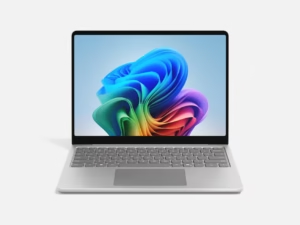
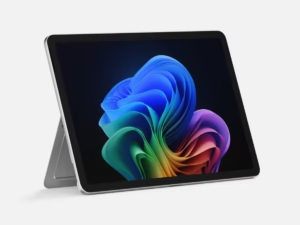
The Surface Pro is a “2-in-1” computer. That means it can be used as a laptop (with a keyboard) and as a tablet (without the keyboard). People love it because it’s light, powerful, and easy to carry anywhere.

But here’s the big question: should you get the 12-inchashampoo software Surface Pro or the 13-inch Surface Pro?

Let’s take a closer look at both, compare them, and find out which one is the best for you.

(Image Credit: Microsoft)

Meet the Microsoft Surface Pro (12-inch)

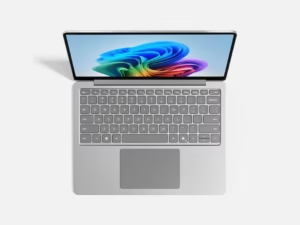
The 12-inch Surface Pro is like a smart notebook. It has a touchscreen, works with the Surface Pen (a digital pen for drawing or writing), and is small enough to fit in a backpack.

Best Features of the 12-inch Surface Pro:

  • Compact Size: At 12 inches, it’s easy to carry around. It feels like holding a thin notebook.

  • Touchscreen Display: Bright and sharp screen, perfect for watching videos, Zoom calls, or reading.

  • Lightweight: Around 1.7 pounds without the keyboard, which is lighter than most laptops.

(Image Credit: Microsoft)


  • Battery Life: Lasts around 12-13 hours, so you can use it all day at school or work.

  • Performance: Runs on Intel processors (like i5 or i7), so it can handle school projects, Office apps, and even some light gaming.

  • Windows 11: Comes with the newest version of Windows, which is smooth and easy to use.

The 12-inch version is best for students, travelers, or anyone who needs something portable.


Meet the Microsoft Surface Pro (13-inch)

The 13-inch Surface Pro is a bit bigger. You might think 1 inch doesn’t matter much, but it really does. That extra space makes the screen look larger, typing easier, andmultitasking more fun.

(Image Credit: Microsoft)

Best Features of the 13-inch Surface Pro:

  • Bigger Screen: At 13 inches, you get more room for apps, games, or split-screen work.

  • Sharper Display: The screen has higher resolution, which makes videos and pictures look amazing.

  • Better for Multitasking: If you like opening many apps at once, the bigger screen makes it easier.

  • Performance: Similar to the 12-inch, but the cooling and battery are slightly better in newer models.

  • Battery Life: Lasts about 13-15 hours, depending on what you do.

  • Stylus-Friendly: Artists and designers love the bigger canvas for sketching or digital art.

The 13-inch version is perfect for professionals, artists, or anyone who wants a laptop-tablet combo that feels closer to a real laptop.


Side-by-Side Comparison: 12-inch vs 13-inch

Here’s a simple chart to help you see the differences:

Feature

Surface Pro 12-inch

Surface Pro 13-inch

Screen Size

12.3 inches

13 inches

Weight

1.7 lbs

1.9 lbs

Battery Life

12–13 hours

13–15 hours

Resolution

2736 x 1824

2880 x 1920

Performance

Intel i5/i7 chips

Intel i5/i7 chips

Portability

Easier to carry

Slightly bigger but still slim

Best For

Students, travelers

Professionals, artists


Pricing: How Much Do They Cost?

Microsoft changes prices depending on the model, memory, and storage. But here’s a rough guide:

  • Surface Pro 12-inch: Starts around $999 and can go up to $1,500+ depending on upgrades (like faster processors or more storage).

  • Surface Pro 13-inch: Starts around $1,099 and can go up to $1,700+ for higher-end models.

Remember: the keyboard and pen usually cost extra. The keyboard is about $150, and the pen is around $100.


What Makes the Surface Pro Special?

  • 2-in-1 Magic: Switch from laptop to tablet in seconds.

  • Touchscreen Fun: Draw, tap, swipe, and write naturally.

  • Super Portable: Lighter than most laptops, so easy to bring to school or the office.

  • Great for Students and Professionals: Perfect for note-taking, video calls, and working on projects.

  • Strong Battery Life: Use it all day without needing to plug in.

  • Windows 11: Full laptop power in a tablet body. You can install real apps, not just mobile ones.


Why Should You Buy It?

Here’s why people love Surface Pro:

  • Students: Great for taking notes, drawing diagrams, attending online classes, and watching lessons.

  • Artists: The Surface Pen and big screen (especially the 13-inch) make it amazing for digital drawing or painting.

  • Business Professionals: Super light for traveling, strong enough for presentations, and perfect for typing emails on the go.

  • Everyday Users: Watch Netflix, play light games, browse the web, and connect with friends.

If you’re choosing between the two:

  • Get the 12-inch if you want something small, light, and easier to carry every day.

  • Get the 13-inch if you like a bigger screen for work, art, or entertainment.


Which One Wins?

Honestly, both are great. The 12-inch wins for portability. The 13-inch wins for experience and comfort.

Think of it this way:

  • The 12-inch is like carrying a small notebook.

  • The 13-inch is like carrying a magazine — still light, but more space to enjoy.


Final Thoughts

The Microsoft Surface Pro is not just a gadget — it’s like having a laptop, a tablet, and a sketchbook in one. Whether you go for the 12-inch or the 13-inch, you’re getting a powerful device that can help with school, work, or fun.

  • Choose the 12-inch if you’re always on the move.

  • Choose the 13-inch if you want more space to create, work, or watch movies.

Either way, you’ll love how light, fast, and useful it is.

If you’re looking for a computer that’s easy to carry, fun to use, and strong enough for work or play, the Microsoft Surface Pro is worth buying.


Conclusion

The Microsoft Surface Pro is like having a laptop, tablet, and digital notebook all in one. Whether you pick the 12-inch or the 13-inch, you’ll get a device that’s stylish, powerful, and perfect for school, work, or play.

If you want portability, choose the 12-inch.
If you want more comfort and space, choose the 13-inch.

No matter what, the Surface Pro is a smart buy in 2025.


👋 Final Words

The Microsoft Surface Pro 12-inch and 13-inch both bring power, style, and flexibility into one device. Whether you’re a student, professional, or artist, there’s a Surface Pro that fits your lifestyle.

But wait—our journey doesn’t end here! 🎉

👉 Stay tuned for our next big review: iPad Pro vs. Microsoft Surface Pro. We’ll dive deep into Apple’s iPad powerhouse and see how it stacks up against Microsoft’s Surface Pro. Which one will win in performance, design, and value? You won’t want to miss it!


📱 Apple iPhone 17 Air – Slim Design, Features & Review 2025

Apple has made a brand-new phone called the iPhone 17 Pro Max. It’s big, shiny, and super powerful. Every year, Apple makes their iPhones better, and this one is their best phone ever. It has a strong body, a really fast brain (chip), amazing cameras, and a long-lasting battery.

But the big question is: is it worth buying? Let’s check out what makes this phone so special.

(Credit: Apple.com)

Design (How It Looks and Feels)  

  • The phone is made with titanium and glass, so it’s strong but not too heavy.

  • It’s a little bigger than the last iPhone but also thinner, so it’s easier to hold.

  • Comes in cool new colors like Midnight Blue and Solar Titanium.

  • It’s waterproof and dustproof, so you don’t have to worry if it gets a little wet.


👉 In short: The iPhone 17 Pro Max is both tough and stylish.


Screen (What You See)

  • The screen is huge — 6.9 inches!

  • It’s super bright, so you can see it clearly even in the sun.

  • Colors look amazing, whether you’re watching movies, playing games, or scrolling TikTok.

  • The screen refreshes super fast (144Hz), so everything looks smooth.

👉 Watching videos or playing games feels like you’re looking at a mini movie theater in your hand.

One click and your internet is private. Get NordVPN today.


Performance (How Fast It Is)

  • It uses Apple’s newest brain called the A19 Bionic chip.

  • This chip makes the phone run super fast and saves battery too.

  • You can play heavy games, edit videos, or open many apps at once without slowing down.

  • Apple also added AI (artificial intelligence) to make things smarter — like fixing photos, predicting texts, and giving quick answers with Siri.

👉 This phone is basically like having a tiny powerful computer in your pocket.


Cameras (Take Amazing Photos and Videos)

  • The back has 4 cameras:

    • 200MP main camera (super detailed photos).

    • 48MP wide camera (great for landscapes).

    • 12MP zoom camera (can zoom in 10x without getting blurry).

    • LiDAR scanner (helps focus in the dark).

  • You can also record 8K videos (super sharp, like movies).

  • The selfie camera is 48MP, so your selfies look crystal clear.

  • Night photos look way better now — brighter and cleaner.

👉 If you love taking photos or making TikToks/YouTube videos, this phone is like carrying a pro camera everywhere.


One click and your internet is private. Get NordVPN today.


Battery (How Long It Lasts)


  • Big 5000mAh battery — lasts almost 2 days with normal use.

  • Can charge super fast: 50% in less than 20 minutes.

  • Works with wireless charging and can even charge your AirPods or Apple Watch.

👉 No more worrying about your phone dying in the middle of the day.


Software (What It Can Do)

  • Runs on iOS 19, Apple’s latest software.

  • Siri is smarter and faster — now it works even without the internet for some things.

  • You can connect smoothly with your iPad or MacBook — start something on your phone, finish it on another Apple device.

  • Fun new widgets and better privacy tools keep your data safe.

👉 The phone doesn’t just work well — it also works with all your other Apple gadgets.


One click and your internet is private. Get NordVPN today.

Price and Availability

  • Starts at $1,399 in the US (about S$1,899 in Singapore).

  • Comes in 256GB, 512GB, 1TB, and even 2TB versions.

  • Pre-orders opened in September 2025, and it’s available worldwide now.

👉 It’s expensive, but it’s Apple’s top phone, made for people who want the very best.


🎯 Conclusion

The iPhone 17 Pro Max is Apple’s most powerful phone yet. It has:

✅ A super-strong design

✅ One of the best screens ever

✅ A super-fast chip

✅ Cameras that beat most pro cameras

✅ Long battery life

✅ Smart new software

It’s pricey, but if you love gaming, photography, videos, or just want the top phone of 2025, the iPhone 17 Pro Max is hard to beat.

👉 It’s not just a phone — it’s like a mini computer, movie studio, and camera in your pocket.

The iPhone 17 Air is Apple’s sleekest and lightest iPhone yet — perfect for those who want power without the bulk. With its slim design, bright display, and strong performance, it feels like the perfect balance between style and speed. What are your thoughts on the iPhone 17 Air? Would you pick it over the Pro Max? Share your thoughts in the comments below, and stay tuned to Oleohub for more hands-on reviews and the latest in tech.


One click and your internet is private. Get NordVPN today.